
Overview
Welcome to Zift PRM! We're glad you're here. We hope you'll spend a few minutes going through this guide to learn some Zift PRM basics. We will introduce you to a number of useful functions and concepts that will help you start planning, implementing, and analyzing your marketing efforts.
Zift Solutions provides end-to-end Enterprise Channel Management. Zift PRM (Partner Relationship Management) has the automated ability to measure performance and identify the most productive channel behaviors, then encourage adoption of best practice behaviors throughout the Channel. We've kept the interface simple and user-friendly - you'll find everything you need to know about the platform right from your homepage. Learn more about the Zift PRM product.
Logging into Zift PRM
Zift PRM is a software-as-a-service (SaaS) application, accessed using a web browser. The URL to access Zift PRM varies from customer to customer, and most users will receive an email from their company administrator, advising them which URL to go to, and inviting them to create their own unique and secure password. The login screen provides guidance on password strength to comply with your company's rules. Enter your chosen password, and confirm it. The password is stored securely within Zift PRM and no one else can access or view it. Learn more about logging into the Zift PRM Partner Portal and Zift PRM Administration Portal.
Navigating Zift PRM
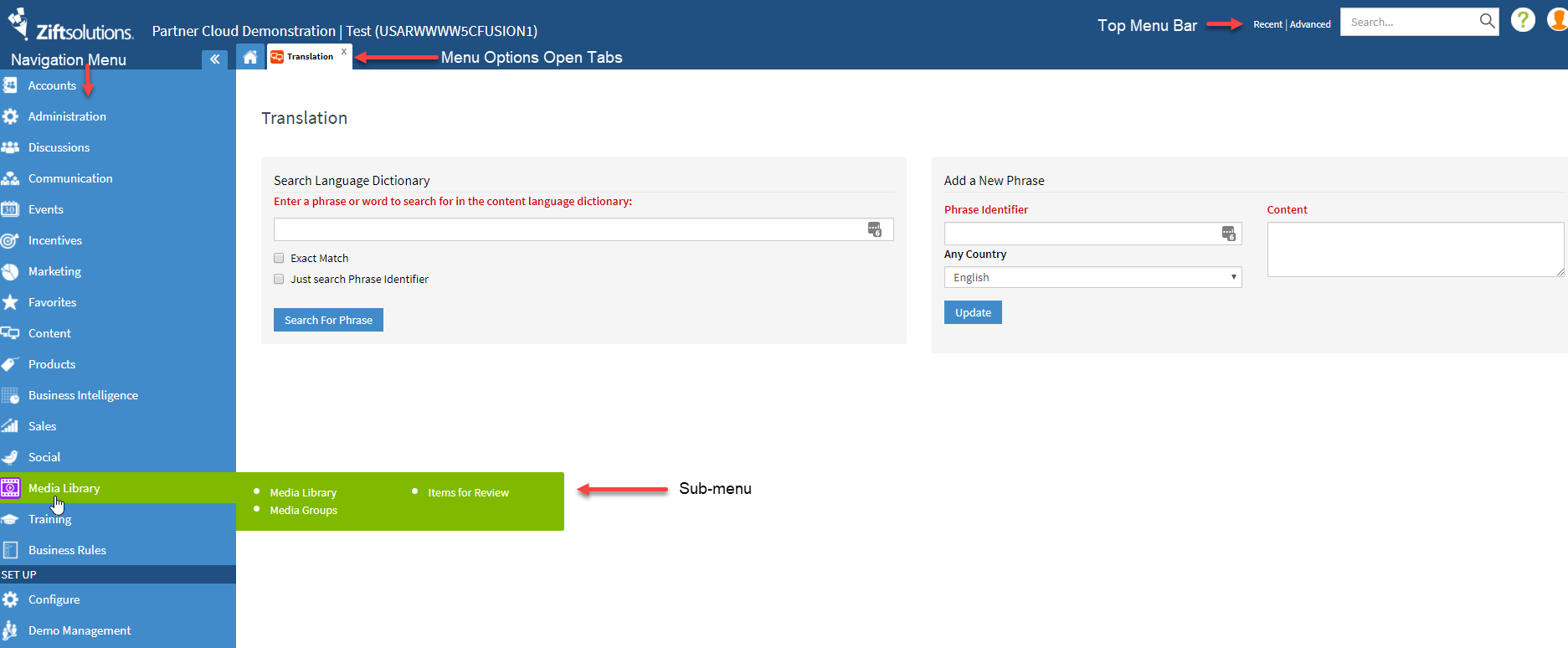
The Zift PRM user interface provides you with easy access to all the Apps and features within the application, using a navigation frame based around a central workspace. Features to note are:
- Top Menu Bar includes search with links to Recent and Advanced search options, PRM Academy knowledge base, and your profile including logout option.
- Menu Options Open Tabs, immediately below the top Menu Bar. These allow you to keep open several tabs at once, for multi-tasking. The first tab is always the Partner Dashboard.
- Navigation Menu, to the left of the work space. This is sub-divided into two sections, for Apps, and Set Up. The Menu Options displayed will vary according to your company’s Zift PRM license, and your own personal User Rights.
- Zift PRM Menu Options, consist of options that allow you to use areas of the system that you will need to access. Each option has a color coordinated menu and subsequent menu buttons. Within the Zift PRM menu, you have the choice to decide on the order of your menu options. This means you can bring the ones you use the most to the top of the list so they are one easy click away.
Zift PRM Menu Customization.
Note: Our documentation is written to an "out of the box" configuration. If you choose to customize your menus the documentation will not match your configuration.
- To move a Zift PRM menu option within the menu positioning, simply click and drag the menu item and move it to a new position in the list. This positioning will be saved for the next time you log in and is saved to your profile in all browsers.
- To access a menu options functionality, click on the name, and the sub-Menu will be displayed within the work space. Each item in the sub-menu has its own icon, and these can be rearranged.
- To move an icon, click and hold down to drag the icon to another position on the screen. All icons are sorted in list order from left to right. Zift PRM provides a recommended business process order of icons which can be changed at any time by dragging the buttons to a new position. When you drag an icon to a new position, the rest of the buttons will be re-positioned one place to the right to reflect this.
Navigating with Tabs
When you open multiple tabs, they will display one after the other in the tab bar. You can close tabs individually or all by right clicking on the tab name and selecting to Close Tab or Close Other Tabs.
Zift PRM Search
The Zift PRM Search allows you to search for person, organisation and location information quickly and efficiently in one simple search. The standard location for Zift PRM Search functionality is at the top right of any Zift PRM screen. Enter any search criteria into the search box and it will open in a new tab. Learn more about Zift PRM Search.
Comments
0 comments
Please sign in to leave a comment.