
Overview
Zift PRM allows you to choose what will be displayed on your homepage when you log into the administrator site. As an administrator, you can also make these choices for others, either individually or in groups.
Before You Begin
Log into PRM Admin with userTask Level 3 rights or greater.
How to Use Home Page Options
- Navigate to Administration > Home Page Options.
- Use the drop-down lists to select which options you want to apply to your home page.
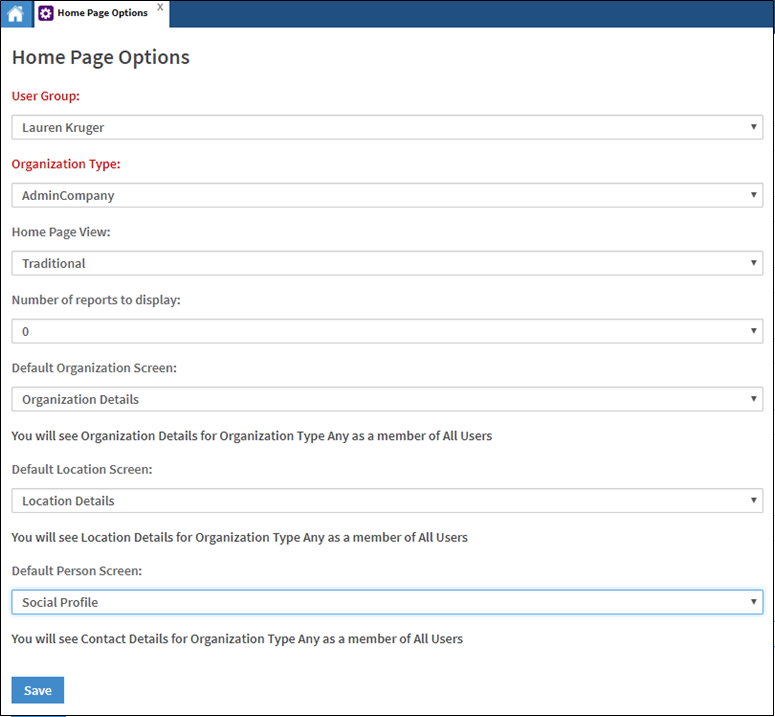
Parameter Description User Group
[Required]The user group to apply the changes to. You can select an individual user, including yourself, to apply the settings to. Organization Type
[Required]Select the organization type of the users that the modified homepage should apply to. Home Page View Select the page layout you would like to apply:
Traditional: supports widgets but no reports
Full Screen: supports up to 6 reports
Split Screen: supports up to 3 reports and 3 widgets
Advanced: supports widgets but no reports
Metrics Dashboard: supports widgets but no reportsThe fields below this one are dynamically updated to reflect the choice made.
Number of reports to display Allows you to specify how many reports to display out of the maximum available for the selected Home Page View. Default Organization Screen The screen you will see when searching for an organisation and clicking to view the organisation. Default Location Screen The screen you will see when searching for organisation location detail. Default Person Screen The screen you will see when searching for person data. Clicking on a person will take you to your chosen screen. - Click Save.
The options available on the screen vary based on what is selected from the Home Page View drop-down list.The Advanced and Metrics Dashboard have the same parameters as the Traditional screen option. The tables below provide the parameters and descriptions of the fields available for the Full Screen and Split Screen options.
Full Screen
Parameter Description Full Screen Report
[Top Left]Select which report is displayed in the top left side of the screen.
The available reports depend on your user rights.Full Screen Report
[Top Right]Select which report is displayed in the top right side of the screen.
The available reports depend on your user rights.Full Screen Report
[Middle Left]Select which report is displayed in the middle left side of the screen.
The available reports depend on your user rights.Full Screen Report
[Middle Right]Select which report is displayed in the middle right side of the screen.
The available reports depend on your user rights.Full Screen Report
[Bottom Left]Select which report is displayed in the bottom left side of the screen.
The available reports depend on your user rights.Full Screen Report
[Bottom Right]Select which report is displayed in the bottom right side of the screen.
The available reports depend on your user rights.
Split Screen
Parameter Description Split Screen Report
[Top]Select which report is displayed at the top of the screen.
The available reports depend on your user rights.Split Screen Report
[Middle]Select which report is displayed in the middle of the screen.
The available reports depend on your user rights.Split Screen Report
[Bottom]Select which report is displayed at the bottom of the screen.
The available reports depend on your user rights.
Comments
0 comments
Please sign in to leave a comment.