
Overview
A single page view of all users who have been granted a security right and the source of that permission. The procedure below can be used to determine which users have a particular securityTask level. You will be able to determine how they were granted those rights and to add or remove permissions as appropriate.
Before You Begin
Log into PRM Admin with adminTask Level 1 rights or greater and userTask Level 3 rights.
How To View and Edit User Access Rights
- Navigate to Administration > User Access Rights.
- Select a Security Task from the User rights level drop-down list to view which users have task rights.
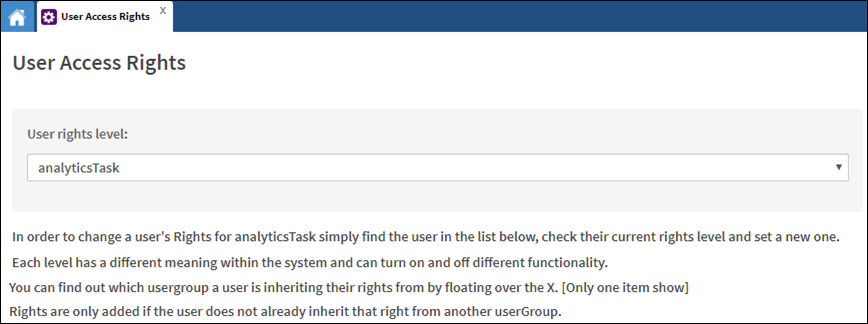
- For each user that has any level of the selected rights, you will see columns indicating the level of rights they have overall, personally (Personal Rights are granted directly to the user) and Group Rights (Inherited Rights are held through membership to a User Group.)
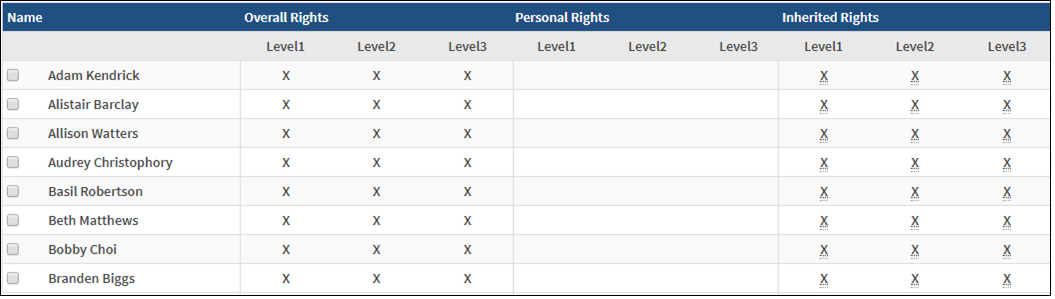
- If a user has Inherited Rights, you can determine which group has conferred the right by hovering over the X in the appropriate column. Inherited rights can only be revoked by removing the user from the User Group or modifying the User Group rights.
- Modify the personal rights of a user by clicking the checkbox to the left of the user's name and using the Grant Personal Rights or Remove Personal Rights panels.
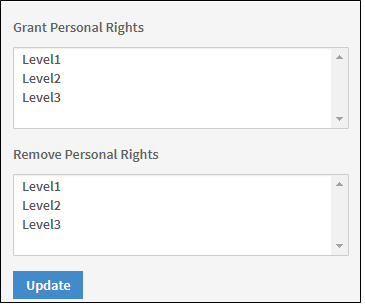
- Click Update.
Comments
0 comments
Please sign in to leave a comment.