
Overview
Activity Streams display short messages to users as a time-line. This allows you to publicize community activity to foster user engagement. Engaged users collaborate more and spend more time on the site. Activity Stream messages can be generated automatically by a Zift PRM business process or they can be created manually in the Communications Manager.
Activity Streams can be displayed to Portal users by using the RELAY_ACTIVITY_STREAM Relaytag. Normally, this is configured to appear on the Homepage to ensure that the Partner user sees it as soon as they log in.
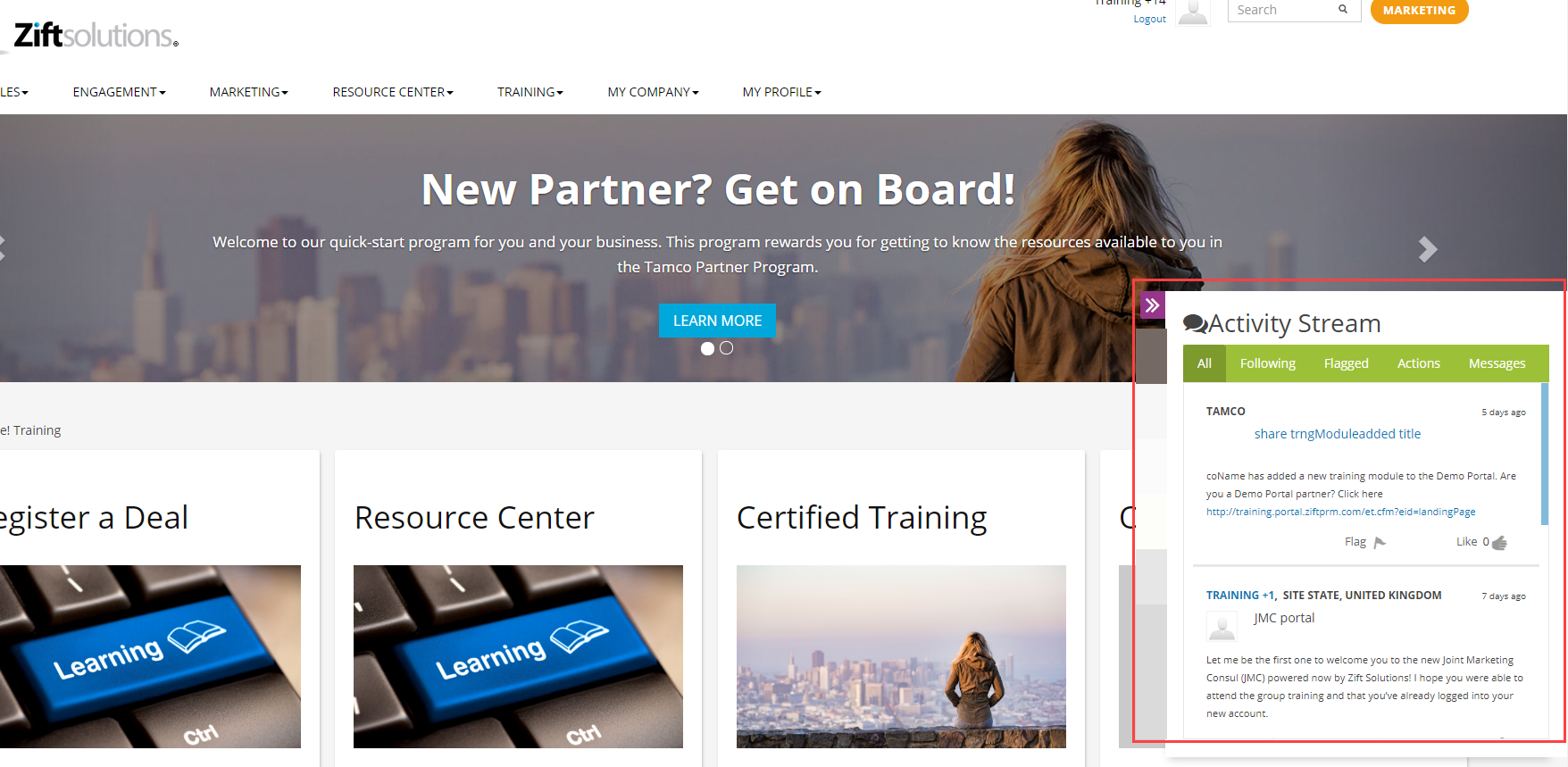
Activity Streams can also be displayed to your internal Zift PRM users. In this case, the Activity Stream appears as a panel on the right of the Homepage.
Before You Begin
Log into PRM Admin with CommTask Level 1 rights or greater.
How to Create Activity Stream Messages
- Navigate to Communication > Message to Activity Stream.
- Click Add in the top right corner.
- Enter the message information.
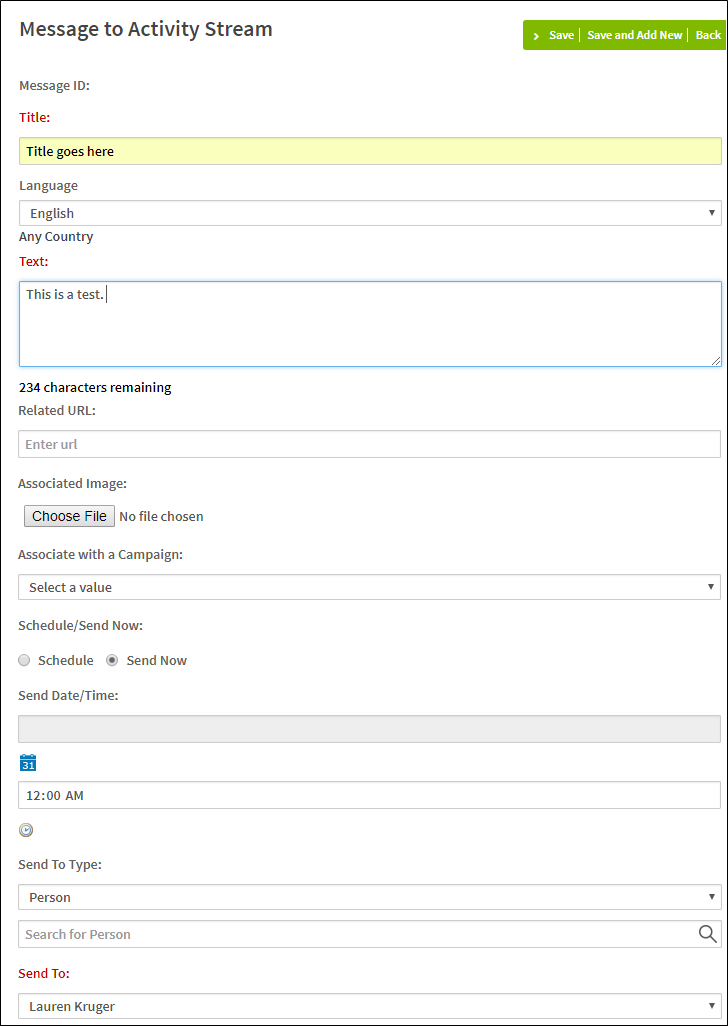
- Set the parameters for the Activity Stream Message as defined below.
Label
Description
Message ID
The ID is generated when the record is saved.
Title
The message title that appears over the main message body.
Language
Select the language the message will be displayed in.
Text
The body text that appears in the message.
Related URL
Enter a URL if there is a page for users to view that is associated with the message.
Associated Image
Click to add an image to the message.
Associate with a Campaign
Select a campaign to associate with the message if required.
Schedule/Send Now
Select when the message is sent
Schedule: Select the date and time.
Send Now: The current date and time is used.Send Date/Time
Use the calendar control to select a date and the combo box to select a time (when Schedule is chosen as when to send the message).
Send to Type
Select a type from the list:
Person
Selection
UsergroupUse the search to locate and select who will receive the message.
Send To
This field is populated automatically when a value is selected in the search.
- Click Save.
- The Activity Message has been created.
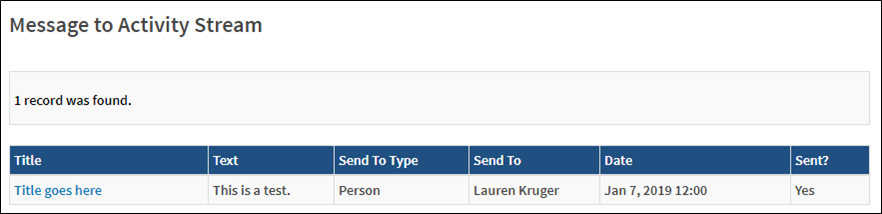
To view the message once it has been sent, log into the Partner Portal, and click the orange pointer image on the right side of the screen.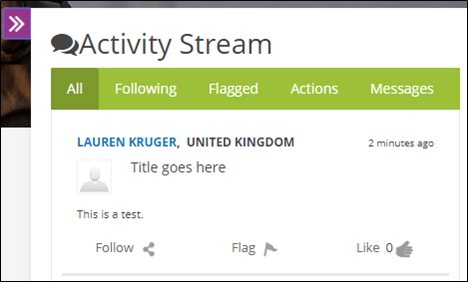
Any messages that are sent to you will be listed here.
Comments
0 comments
Please sign in to leave a comment.