
Overview
Relaytags are ready-made widgets located on the WYSIWYG editor of a portal page, which enables you to quickly and easily add a wide variety of functionality to the pages of your Partner Portal. Relaytags can be used to display files and media resources, link to training courses, or enable a partner to monitor the progress of their opportunities. This article describes how to use the RELAY_ACTIVITY_STREAM Relaytag.
Best Practice for Relaytags
While you can use more than one Relaytag on a single page, we recommend that you only do so if the Relaytags are querying different data. Interference and unexpected behavior may result if two Relaytags on a single page attempt to access the same data.
Before You Begin
- Log in to the PRM admin site with elementTask level 2 rights or greater. The instructions below assume that you have previously created the page you wish to add the Relaytag to. In general, it is best practice to only display a single Relaytag per page.
- You will need the user level permission to Add a Phrase and the appropriate language rights.
- How to Add a Relaytag to a Partner Portal Page.
Partner Portal Result
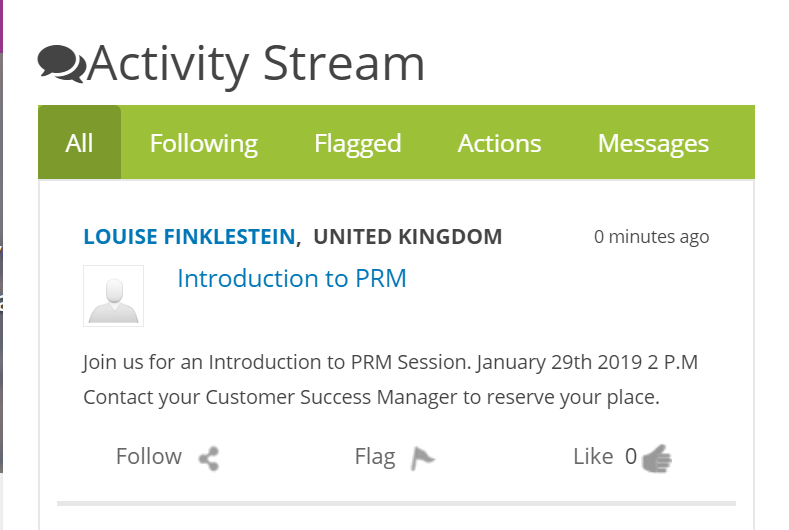
This is an example of the Relaytag displayed in the Partner Portal. You can customize the results using the parameters below.
Figure: Portal page displaying RELAY_ACTIVITY_STREAM with example settings.
Relaytag Configuration
The RELAY_ACTIVITY_STREAM Relaytag controls what is displayed in a user's activity stream.
| Parameters | Type | Description |
|---|---|---|
| Filter Type | Multi-select List |
Select one of the following options:
|
You can add this Relaytag to a Portal page using the procedure described here.
Sample definition
{{RELAY_ACTIVITY_STREAM filterType=All}}
Comments
0 comments
Please sign in to leave a comment.