
Overview
Relaytags are ready-made widgets located on the WYSIWYG editor of a portal page, which enables you to quickly and easily add a wide variety of functionality to the pages of your Partner Portal. Relaytags can be used to display files and media resources, link to training courses, or enable a partner to monitor the progress of their opportunities. This article describes how to use the RELAY_ELEARNING_TRAININGPATH_PROGRESS Relaytag.
Best Practice for Relaytags
While you can use more than one Relaytag on a single page, we recommend that you only do so if the Relaytags are querying different data. Interference and unexpected behavior may result if two Relaytags on a single page attempt to access the same data.
Before You Begin
- Log into PRM Admin with elementTask Level 2 rights or greater. The instructions below assume that you have previously created the page you wish to add the Relaytag to. In general, it is best practice to only display a single Relaytag per page.
- You will need the user level permission to Add a Phrase and the appropriate language rights.
- How to Add a Relaytag to a Partner Portal Page.
Partner Portal Result
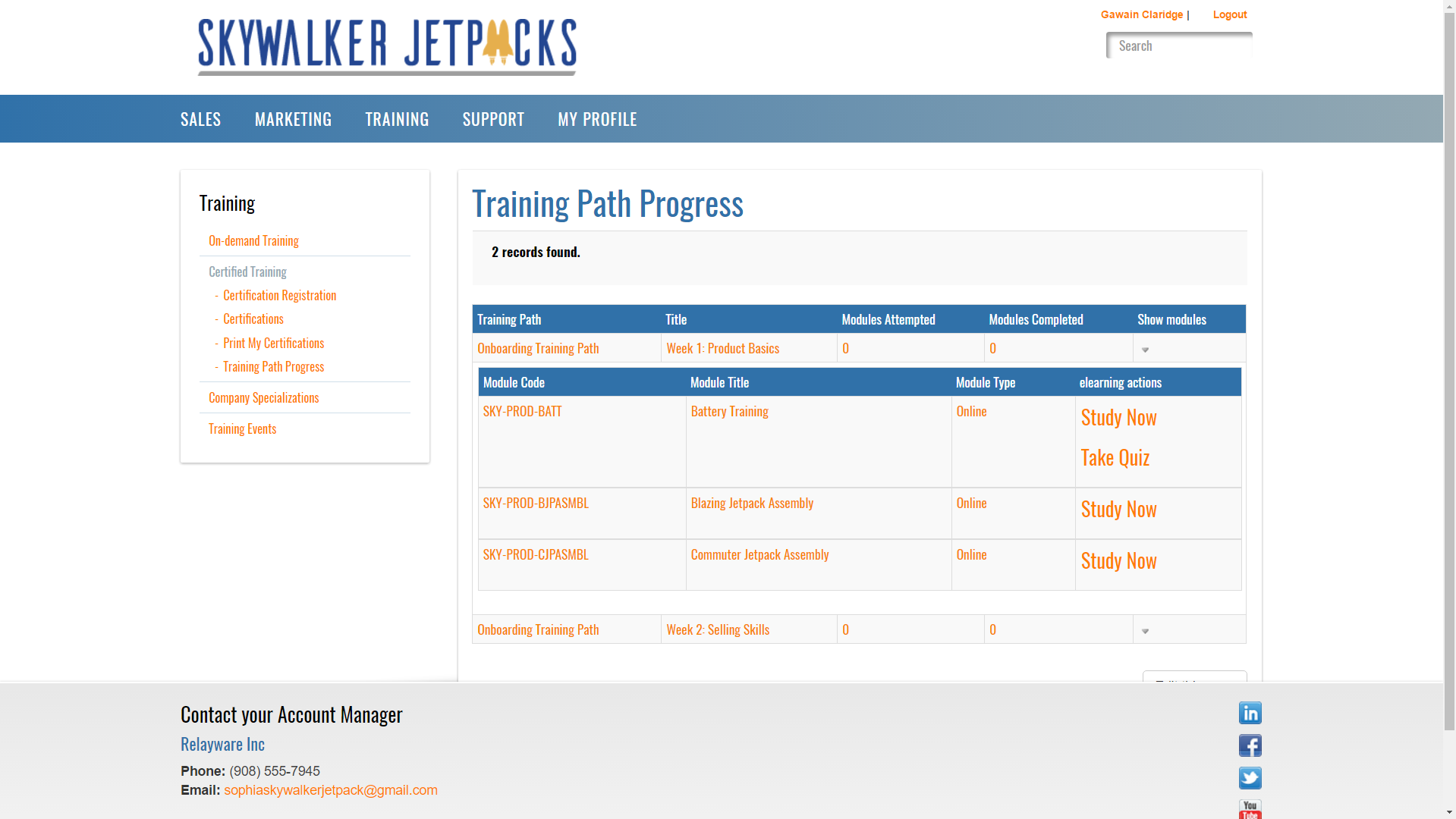
This is an example of the Relaytag displayed in the Partner Portal. You can customize the results using the parameters below.
Figure: RELAY_ELEARNING_TRAININGPATH_PROGRESS on a Portal Page with the Example settings applied.
Relaytag Configuration
The RELAY_ELEARNING_TRAININGPATH_PROGRESS Relaytag allows users to view the training paths they have registered for.
| Parameter | Type | Description |
|---|---|---|
| Course sort order | Drop-down List | The Course attribute that will be used to determine the sort order of the Courses in the list. |
| Module sort order | Drop-down List | The Module attribute that will be used to determine the sort order of the Modules in the list. |
| Available Choices | Multi-select List | Lists the attributes that can be added to the list for each Course that the user is registered for. Select one or more Available Choices and click >> to move them to the Selected Choices list. |
| Selected Choices | Multi-select List | Lists the attributes that are currently selected for display in the user's Course list. The order can be modified using the Up andDn buttons. To remove an item from the Selected Choices list, click the item to highlight it then click << |
| Num Rows Per Page | Text | Enter the maximum number of courses to display on the Portal Page. |
| Quiz question order method | Drop-down List | Select the sorting order for Quiz Questions. Your choices are:
|
| Show incorrect questions on quiz completion | Drop-down List | This will display a table indicating which questions the user answered incorrectly after the Quiz is complete. |
| Show review answers link on quiz completion | Drop-down List | This will display links to the user's answers once the Quiz has been completed. |
You can add this Relaytag to a Portal page using the procedure described here.
Sample definition
{{RELAY_ELEARNING_TRAININGPATH_PROGRESS showIncorrectQuestionsOnCompletion=true}}Related Topics
- Portal & CMS: About Relaytags
- Video: Introduction to Training Manager
- Video: Training in the Portal Overview
- Video: Reports and RelayTags
- Video: Training Programs and Paths
- Video: Training Modules and Module Sets
- Video: How to Upload Training Courseware
- Video: Create Quizzes for Training Courses
- About Training
- Administration: Reports
- Training RelayTags
- Training: Create Quizzes
Comments
0 comments
Please sign in to leave a comment.