
Overview
Relaytags are ready-made widgets located on the WYSIWYG editor of a portal page, which enables you to quickly and easily add a wide variety of functionality to the pages of your Partner Portal. Relaytags can be used to display files and media resources, link to training courses, or enable a partner to monitor the progress of their opportunities. This article describes how to use the RELAY_SHOWSCREEN Relaytag.
Best Practice for Relaytags
While you can use more than one Relaytag on a single page, we recommend that you only do so if the Relaytags are querying different data. Interference and unexpected behavior may result if two Relaytags on a single page attempt to access the same data.
Before You Begin
- Log in to the PRM admin site with elementTask level 2 rights or greater. The instructions below assume that you have previously created the page you wish to add the Relaytag to. In general, it is best practice to only display a single Relaytag per page.
- You will need the user level permission to Add a Phrase and the appropriate language rights.
- How to Add a Relaytag to a Partner Portal Page.
Partner Portal Result
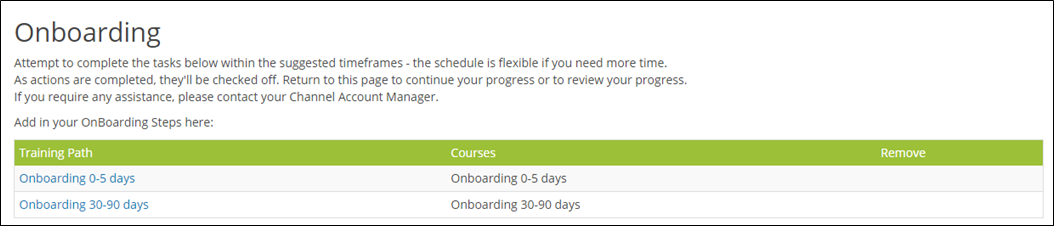
This is an example of the Relaytag displayed in the Partner Portal. You can customize the results using the parameters below.
This is an example of the code used and the end result of using the tag. You can customize the results using the parameters below.
Relaytag Configuration
The RELAY_SHOWSCREEN Relaytag displays an embedded screen definition on a Portal page.
| Parameters | Type | Description |
|---|---|---|
| Screen to Display | Drop-down List | Select the Screen that you wish to display. |
| Post-process Page | Text | Type the EID number of the page the user is sent to after the Screen to display has been processed. |
| Display Method | Drop-down List | Specify if the screen should be editable or only view-able. |
| Hide Button | Radio Button | Set to Yes if you want to hide the continue button or reset button. Used in conjunction with ResetButton and ContinueButton. |
| Show Required Markers | Radio Button | Select Yes to display a red * beside the mandatory fields of the Screen. |
| Next Screen | Text | Select which Screen to display next. |
You can add this Relaytag to a Portal page using the procedure described here.
Sample definition
{{RELAY_SHOWSCREEN frmCurrentScreenID=543 goToEID=1193 frmNoButton=Yes nextScreenid=502}}
Comments
0 comments
Please sign in to leave a comment.