
Overview
Zift PRM provides a multi-layered approach to controlling visibility. This ensures that you have full control over who can see what in the Portal.
This article provides an overview of how to layer your visibility settings to achieve your requirements while minimizing the work required to maintain your content.
Contents
The following concepts are explained in this article:
- Levels of Visibility
- User Groups and Visibility
- Localised Visibility
- Training, Media Resources, and Visibility
- Relaytags, Portal Pages, and Visibility
- Troubleshooting Portal Page Visibility Issues
Levels of Visibility
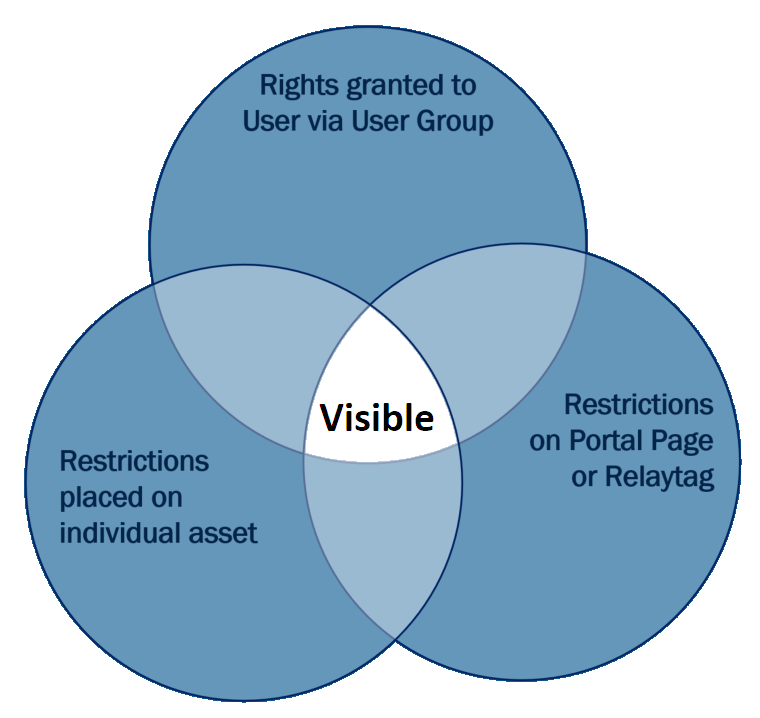
Zift PRM uses a layered approach to controlling visibility. This means that you can set visibility restrictions at multiple points in your content and Partner management processes and these will be all be considered before an item is shown to an end user. The user will only see an item if it is in the intersection of content sets that they are permitted to see.
User Groups and Visibility
The first and most important way of implementing a visibility strategy is to manage users through User Groups. The User Groups that control access to content on the Portal are called Visibility groups. Users added to a group may share any number of common characteristics which are defined as Profiles.
Zift PRM includes multiple visibility User Groups and you can create your own. As you add users, they can be automatically assigned them to appropriate User Groups. This is more efficient and easier to manage than granting access to each individual user. User Groups can reflect segmentation of your user pool based on any criteria you wish to use.
In general, the best practice is to add users to User Groups. The User Group is then added to those permitted to see a given asset. Be cautious of extending a User or User Group's rights to give them access to individual resources. Doing so may unexpectedly give them access to other resources. A good rule of thumb is to manage rights with User Groups and restrictions at the asset level.
Localized Visibility
One of the most common reasons for limiting visibility is to make different localised versions available to people based on their location or preferred language. Zift PRM allows you to create Translations for every element it displays. Language and location settings are evaluated at the individual level. If multiple versions of the same content is available to the individual, they will be shown the version that corresponds to the following order of precedence:
- User Country and User Language
- User Country and Default Language
- User Language and Any Country
- Default Language and Any Country
The country is considered most important. This means that if two versions of the item exists, one in the preferred language but wrong country scope and one with the correct country scope but in the wrong language, the user will be shown the one in the wrong language but correct country scope.
It is worth considering that for text content, the user may be able to use a browser-based translation tool. This will not be the case for images or other non-text content.
Training, Media Resources, and Visibility
When you create a training module or course, or when you add Resources to the Media Library, you can control who has access to those assets in two ways.
The first is to use the Family setting. The family setting allows you to declare that multiple items are interchangeable. The localisation settings will then be evaluated to select which of the items in the family is the best fit for the User.
The second is to use the visibility settings at the bottom of the definition screen. Here, you can specify which user groups should have access to this item.
Relaytags, Partner Portal Pages, and Visibility
Whenever you create a Partner Portal Page, you can set visibility restrictions on the Page. These are inherited and so any child page will only be visible to people who can view the parent page. Obviously, if an individual cannot view a page, then they will not be able to view assets on that page. Conversely, anything displayed on any Page in the Logged Out folder of your Site Tree will be visible to any visitor to your Portal site. You could create a page where a visitor can click a button to access content corresponding to their language or country preference, if required.
The diagram below illustrates how visibility rights and restrictions overlap. The individual must have the rights (usually through their User Group membership) to see both the page and the asset. Any content that sits in a blue section would not be visible to the user.
Some Relaytags can support visibility options. In this case, the content displayed will also be filtered through the same conditions.
Troubleshooting Partner Portal Page Visibility Issues
The principle tool you can use to test visibility and ensure that a given user can see content is by using the impersonation tool. This allows you to open the Portal as if you were the user, in their usual country (what you see will reflect the selected user's language and country settings). You can use this tool either when you are first publishing a page or later if a user reports they cannot access a particular item that they should have access to.
To find the point where the visibility is blocked, use this systematic approach:
- Identify the lowest Page on the Site Tree that is visible to the user.
- If the Page where the item should be accessible to the user is displayed to the user, go to step 2.
- If the Page where the item should be accessible to the user is not displayed to the user, work your way back up the Site Tree and check that no visibility conditions are set that would prevent the user from viewing the page. Visibility restrictions on pages are inherited by child pages.
- Also check the page status for the selected page and all the parent pages. If any of them are set to anything but Show on Live Site, the page and any subpages will be hidden from most Portal users.
- If the Page is visible but a specific item is missing,
- Open the page and check that the items have not been by errors in the page HTML.
- Check that any Relaytag settings are correct.
- If the item is a Media Library Resource or a Training Resource, you should check what visibility settings are set against that item. Remember that this may be set using the Family or Visibility settings.
If, at any point in this troubleshooting procedure you identify the reason why the user cannot see a given item, correct the issue in accordance with your visibility strategy. You may opt to add the user to a group that has visibility of the asset or you may extend the asset visibility to a group that the user belongs to. Adding the individual user to the list of those who can view the item is not recommended.
Comments
0 comments
Please sign in to leave a comment.