
Overview
This procedure allows you to determine what changes have been made against a Person, Location, or Organization. This may be helpful if you need to roll back a change or determine how to duplicate the changes against another entity.
Before You Begin
Log into PRM Admin as an internal or licensed user.
How to View Account Modification History
- Use the Search bar to access the Person, Location, or Organization.
- In the menu bar of the lower panel, click More...
- Select Modification History from the menu choices.
- The Modification History of that specific Entity will display.
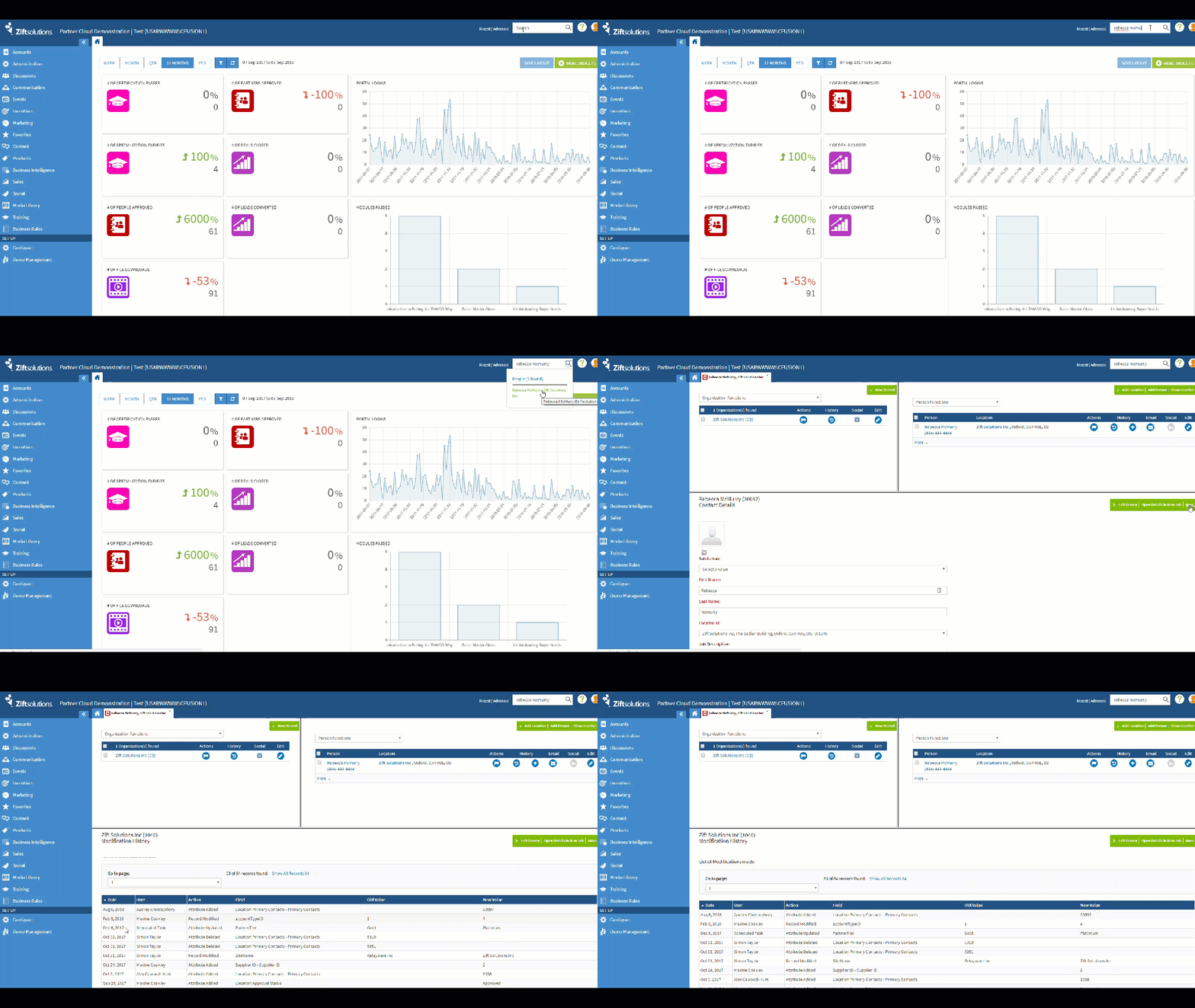
The Modification History will show the following clickable columns.
Date: Date of change.
User: Person who made the change. If a record has Not Known under the User column, it indicates that the task was performed via the Logged-out homepage of the Portal. This is most common for Portal registrations and password resets where the person is not authenticated when making the request.
Action: The kind of change that was made.
Field: The specific field that was edited.
Old Value: What the value was before the change (where applicable.)
New Value: What the value was set to by this change.
Comments
0 comments
Please sign in to leave a comment.