
Overview
The procedure below demonstrates one of the processes followed to create and approve a new Partner Portal user. Your organization may have different procedures in place.
Before You Begin
Navigate to the Partner Portal.
How to Setup a New Partner User
- Click REQUEST A LOGIN in the menu bar.
- Select your Country, Preferred Language and enter your Email.
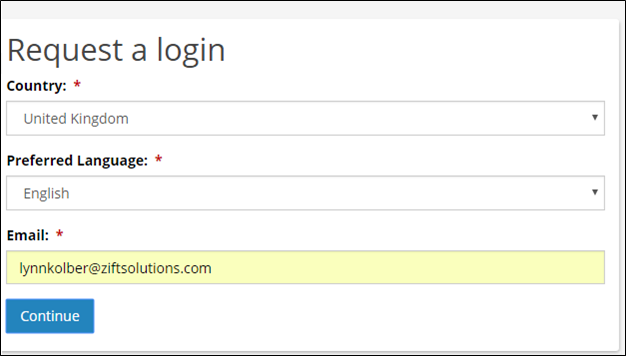
- Click Continue.
- Enter the required Person Details.
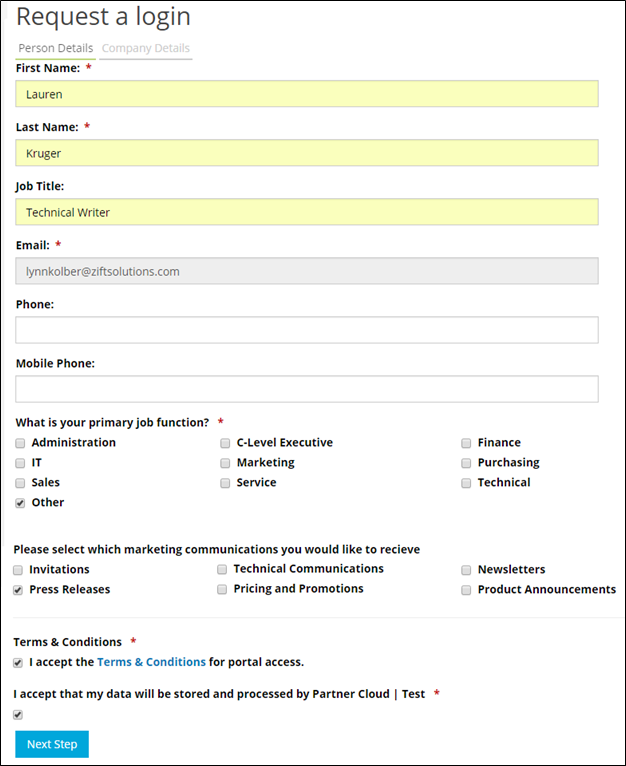
- Click Next Step.
- Enter the required Company Details.
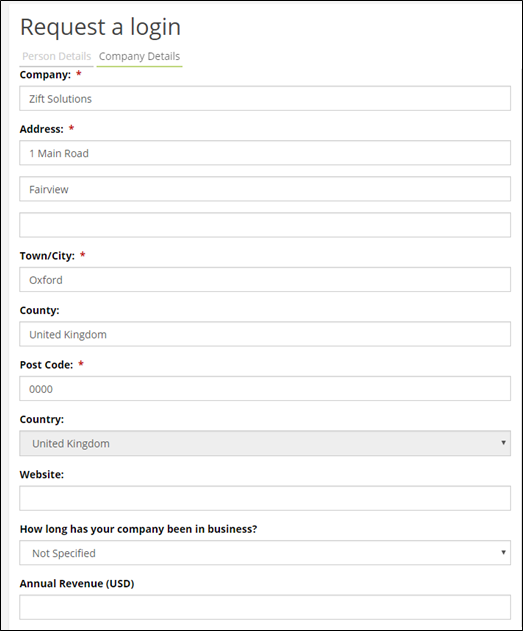
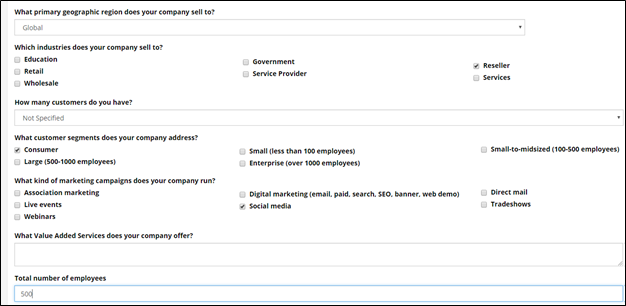
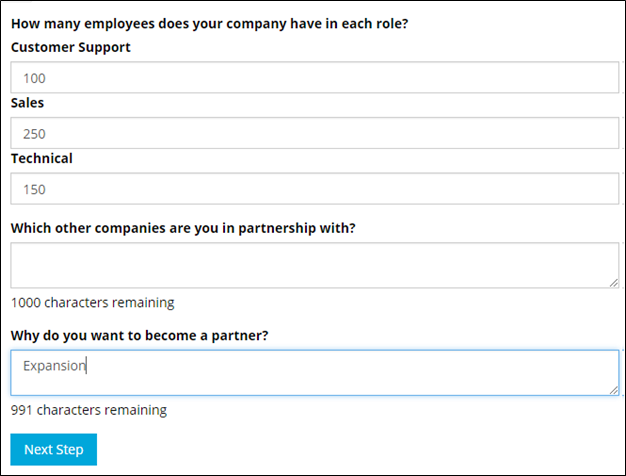
- Click Next Step.
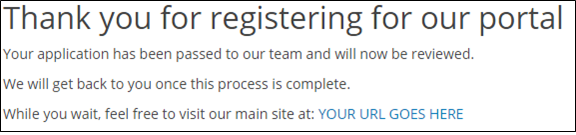
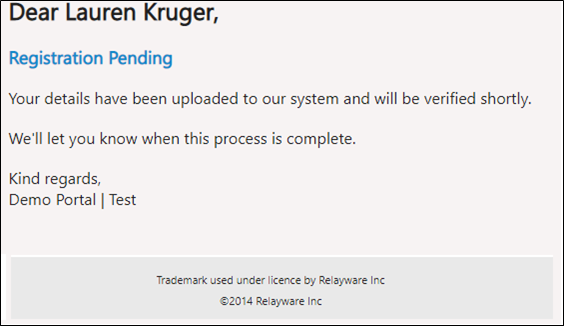
- The registration request is sent to the Admin Portal for review and approval. The user will receive an email informing them that their registration is now pending.
How to Approve the New Partner User
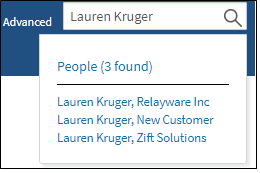
- Search for the user and organization.
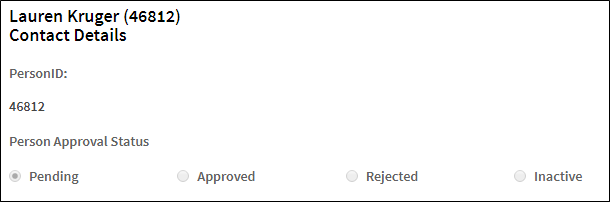
- The Approval status is currently Pending.
- To approve the new Partner user, navigate to Account > New Account Approvals.

- Click Approve Location.
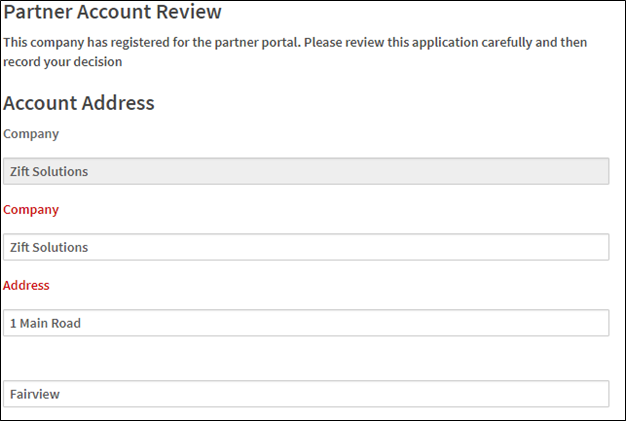
- Review the Partner Account details.
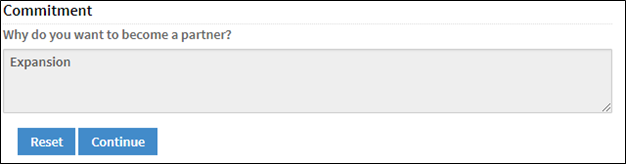
- Click Continue.
- Select Approved in the Location Approval drop-down list. Complete the account setup by selecting a Location Account Manager and Partner Tier.
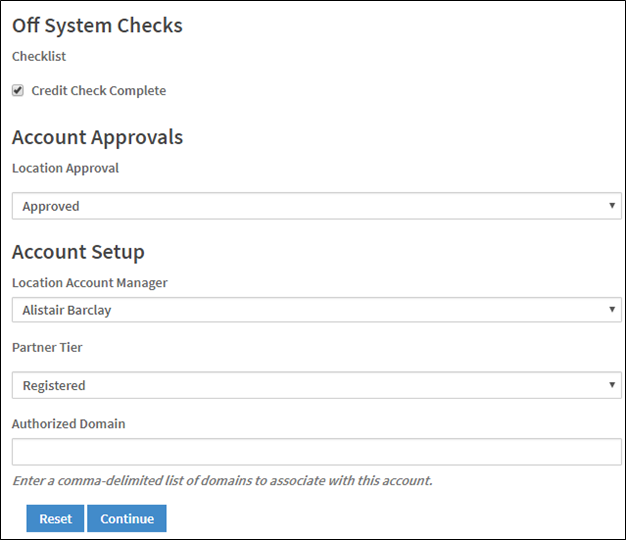
- Click Continue.
- The Person Approval screen appears.
- Select the user by selecting the checkbox to the left of the Title column, and selecting Approved from the drop-down list.
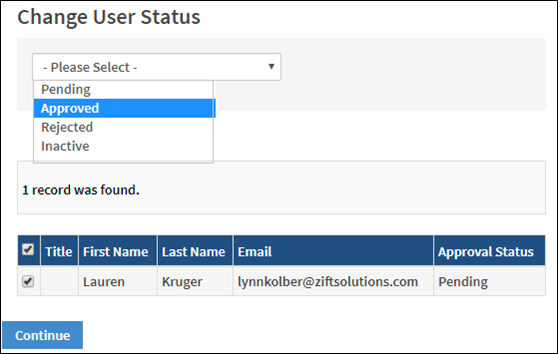
- Click Continue.
- The Partner User is now approved.

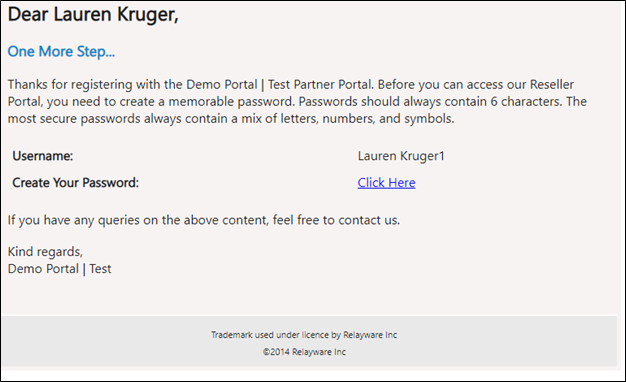
- The Partner user will receive an email containing a link which will allow then to setup their password.
Comments
0 comments
Please sign in to leave a comment.