
Overview
This procedure explains how to merge two locations for an Organization into one. This will automatically migrate all of the Person records associated with the eliminated Location to the new merged Location.
Note: If you need to merge two Locations from different Organizations, for example in the case of a merger or acquisition of one Partner Organization by another; you must first move the locations from the original Organization to the new Organization. Once this is complete, you can proceed with the Location merge.
Before You Begin
- This procedure assumes that you have already run a search and opened the 3-pane view and have the desired Organization in focus.
How to Merge Location records manually
- In the Location List screen, select the two Locations to combine.
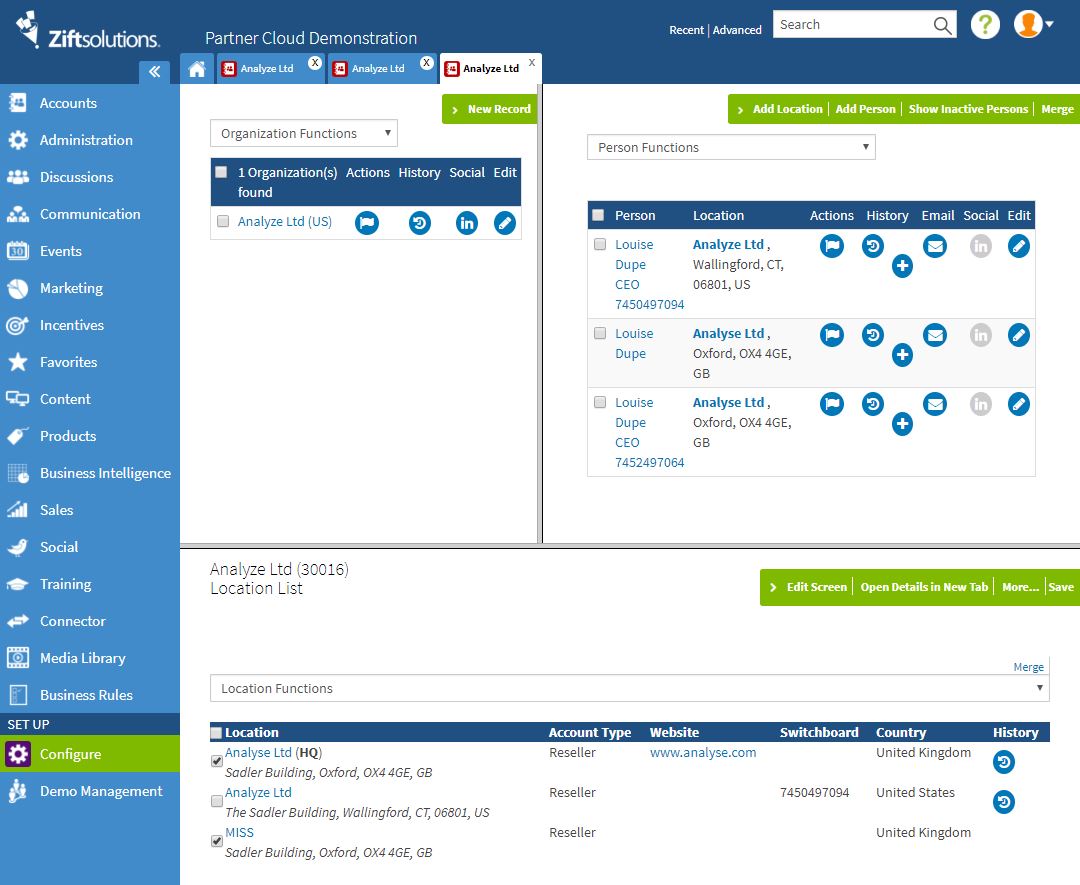
- In the Location comparison screen, use the << and >> buttons to move values from one Location to the other. You can use the reset button to revert to the initial data if needed.
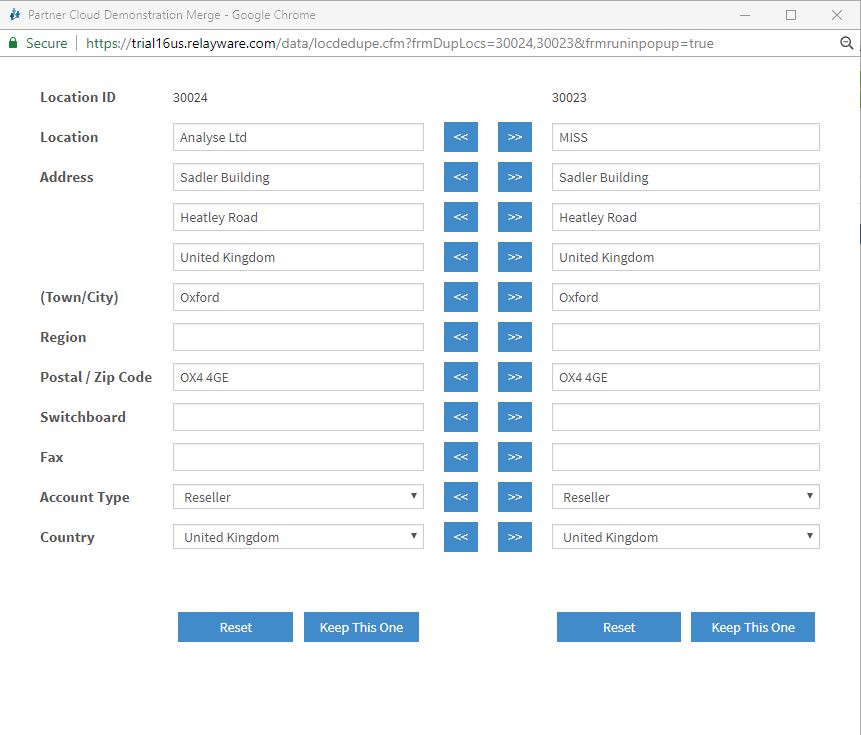
Links are also provided to double check the associated data.
Comments
0 comments
Please sign in to leave a comment.