
Overview
The Media Library is a repository of all media assets you have uploaded to your Zift PRM environment. The Media Library menu provides access to the Library assets, a tool for viewing and defining Media Groups, and manage asset reviews.
After you have created a Media Resource, you can return to it to change the access permissions. Doing this at the level of the Media Resource will allow you to apply the restrictions, regardless of how a user accesses the resource. Alternatively, you can alter the visibility of a Partner Portal page if you prefer.
In this article, learn to modify the access rights to a specific Media Library Resource.
Before You Begin
Log into PRM Admin with fileTask Level 1 rights or greater.
How to Modify Media Library Resource Visibility
- Navigate to .
- Search the Media Library for the desired Media Resource.
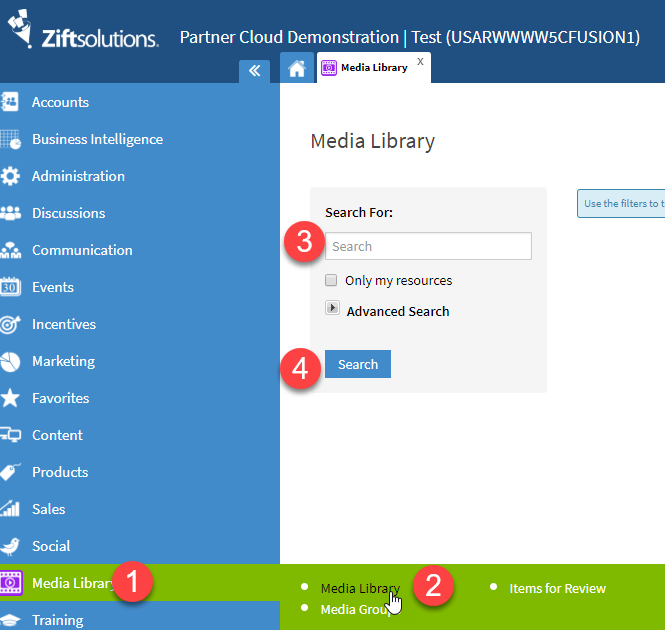
- Click on the hyperlinked title of the Resource.
- In the Resource Editor, scroll down to the Display Options heading.
- [Optional] Restrict visibility to specific countries using the Restrict to Countries multi-select drop-down list.
- [Optional] Restrict visibility to specific User Groups using the Restrict to User Groups lists. You can build very segmented viewer profiles by using the
Any/All/Nonequalifiers. These requirements are layered and so a user who had been granted visibility with an Any or All permission will not be able to see the Resource if he also belongs to a User Group listed under None.- The Any qualifier will grant visibility to a user who is in any of the selected User Groups.
- The All qualifier will only show the Resource to a user who is a member of every selected User Group.
- The None qualifier will block the visibility for any member of a selected User Group.

- Repeat steps 5 and 6 as required.
- Click Save.
Comments
0 comments
Please sign in to leave a comment.