
Overview
Product Groups allow you to create sets of products. For example, you could create a product group to associate a single product with its accessories.
Before You Begin
Log into PRM Admin with orderTask Level 2 rights and incentiveTask Level 2 rights.
How to Add Product Groups
- Navigate to Products > Product Groups.
- Click Add in the menu bar.

- Enter the required product group information.
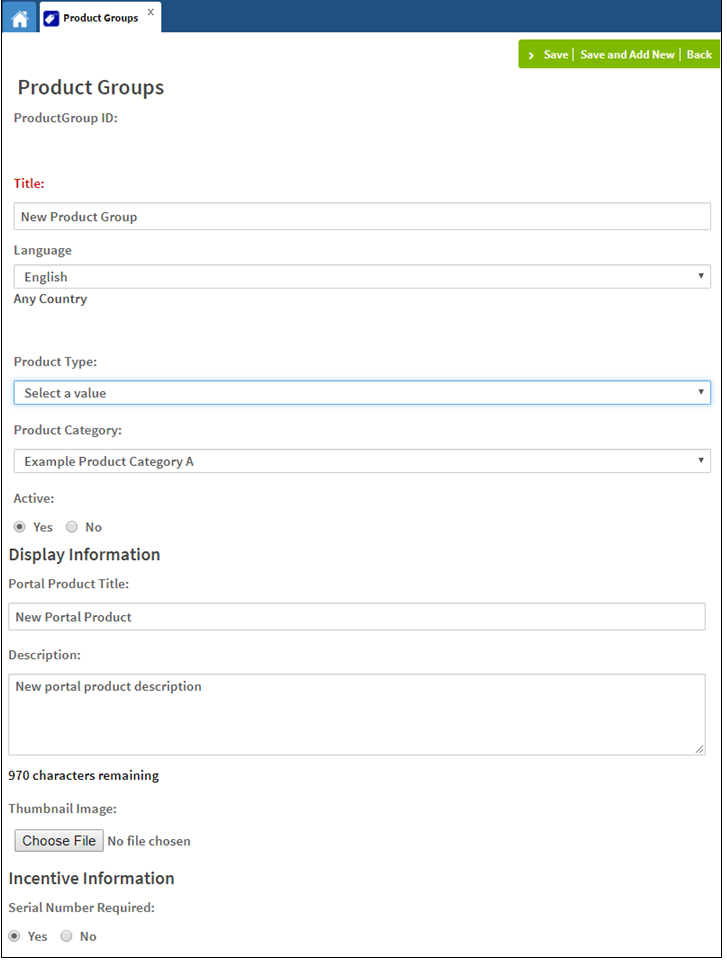
Label Type Description Product Group ID Auto-generated This is a unique identifier for the Product Group generated by Zift PRM. Title Text Enter the product group title. Language Drop-down List Select a language from the drop-down list. Product Type Drop-down List Select a Product Type from the drop-down list. Product Category Drop-down List Select a Product Category from the drop-down list. Active Radio Button Select Yes to set the group as active. Portal Product Title Text Enter a title. Description Text Enter a description of the Portal Product. Thumbnail Image Button Select an image. Serial Number Required Radio Button Select Yes to add a serial number. - Click Save.
Comments
0 comments
Please sign in to leave a comment.