
Overview
Security tasks control access to all areas of Zift PRM Admin and determine what a specific User can do in the Portal. Although they can be assigned to individual users, Zift PRM best practice recommends managing security rights through User Groups in all circumstances.
Security tasks are named using the form <right>Task where right is replaced by a descriptor of the activity. For example, the security right to manage Events is called eventTask. Each security task is tiered, usually allowing users to have Levels 1, 2, or 3. A security tasks have more levels.
If you are following best practice and managing security through User Groups, then each User will inherit the highest level for each security right that has been granted to any User Group they are a member of.
The steps below describe the procedure that you must follow to change the security rights that are granted to a User Group.
Before You Begin
Log into PRM Admin with adminTask Level 1 rights or greater and userTask Level 3 rights.
How to Assign Security Tasks to User Groups
- Navigate to Administration > User Groups.
- Select Assign Security Tasks from the menu bar.
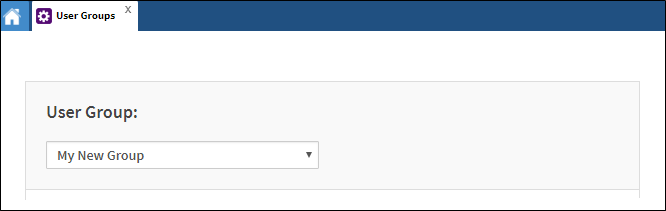
- Select the User Group that you wish to apply security tasks to.
- Select the tasks by clicking on the available options in the list and clicking the > button to assign the Security Task to the selected user group.
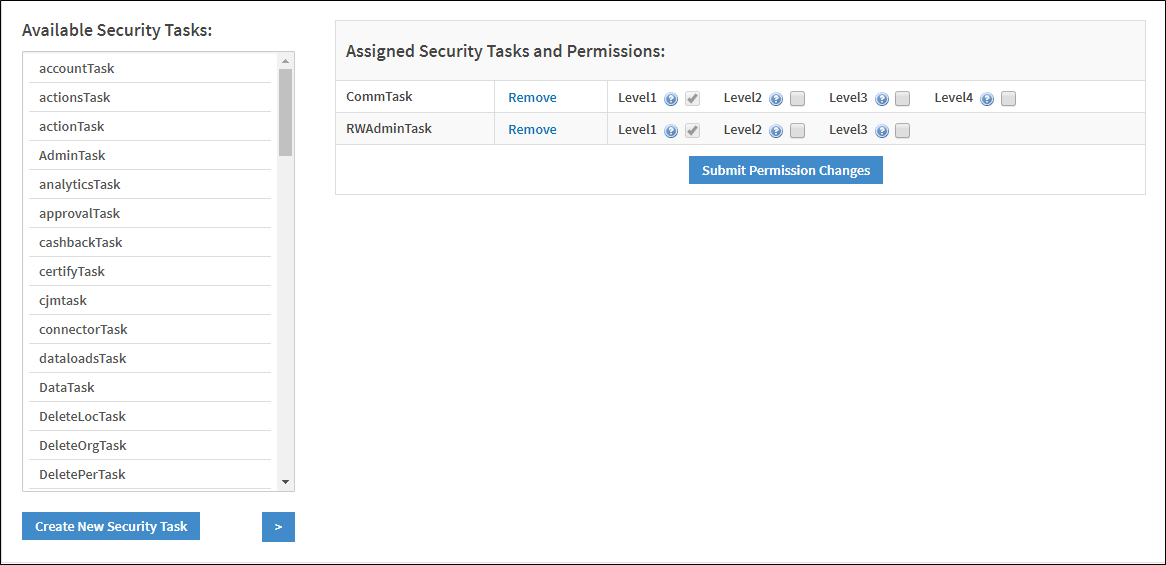
- Click Submit Permission Changes.
Create New Security Tasks
You can add new security tasks by clicking the Create New Security Task and providing a name and a description for the new task. However, this only creates a pointer so that the security right can be granted (by default, there will only be three levels permitted). For any effect on Zift PRM behavior, you will need to consult with your project team.
Comments
0 comments
Please sign in to leave a comment.