
Overview
Profiles are characteristics that define an Entity. Each Zift PRM Entity can have many Profiles. Depending on the Profile type, it can accept one, several, or no values for each Entity. Each of those values is called an Attribute. Zift PRM allows you to evaluate Profile Attributes as conditions for assignment to a User Group.
For example, if you created a Profile for your Partners based on sports interest. The same Profile could have Attributes for Baseball, Hockey, and Football. You could include a question about this in the registration page and then automatically assign users to the Baseball fans User Group if they chose baseball, and so on. If they later told you they had lost interest in baseball, they would automatically be removed from the Baseball fans User Group without the need for further action by an administrator.
The procedure below explains how to configure a User Group to automatically add Users based on Profiles.
Before You Begin
Log into PRMAdmin with adminTask Level 1 rights or greater and userTask Level 3 rights.
How to Assign Profiles to User Groups
- Navigate to Administration > User Groups.
- Select a User Group from the drop-down list.
- Select Assign Profiles to Groups in the menu bar.
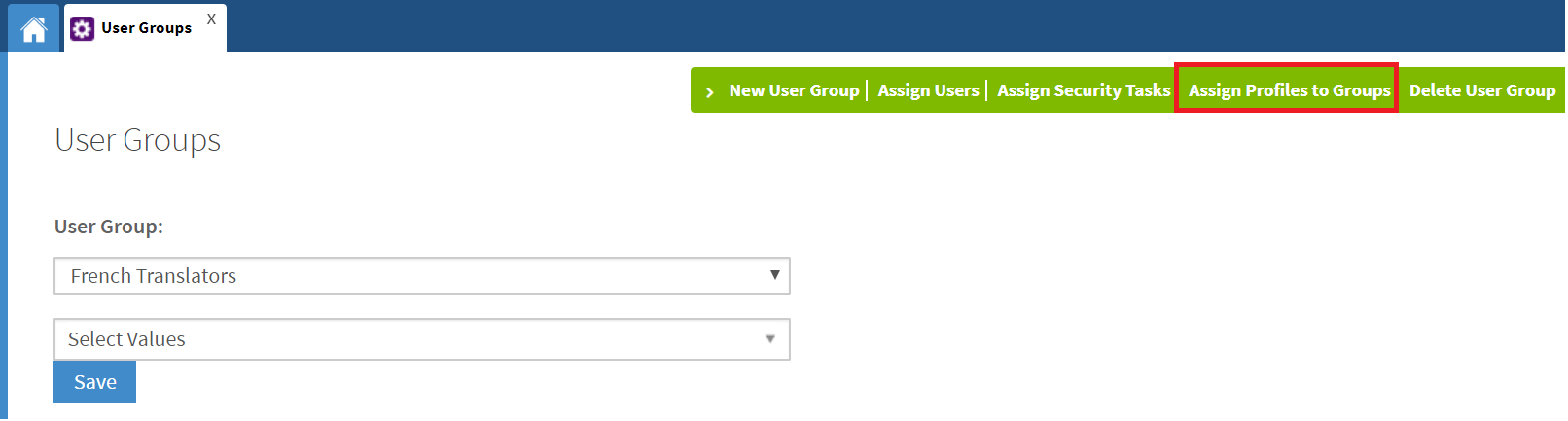
- Select the Profile you wish to assign to the group from the second drop-down list.
Select the Condition from the second drop-down list. The condition is displayed in the text area below after selection.
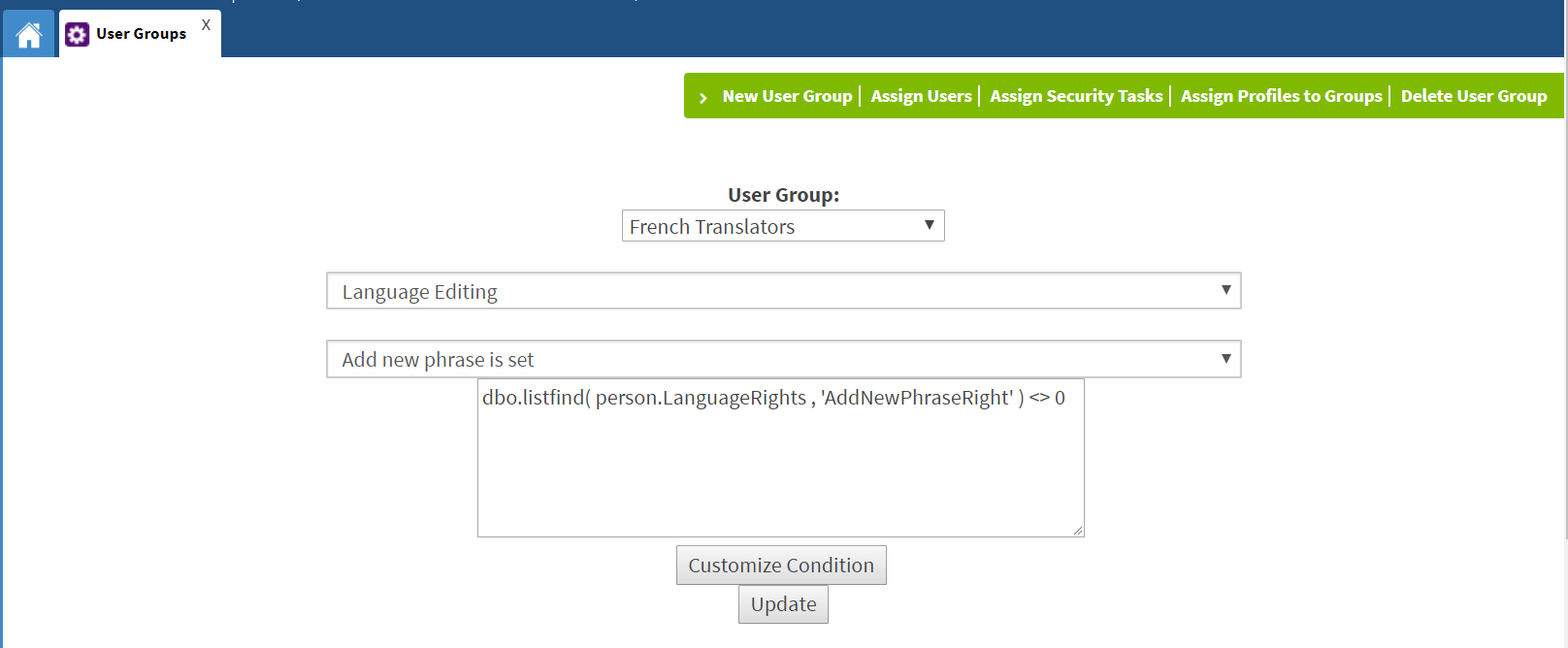
- [Optional] Click Customize Condition to add another Profile to the same user group. By default, the second (and any additional conditions) will be added as AND conditions. You can simply overwrite this by typing a different boolean operator as needed.
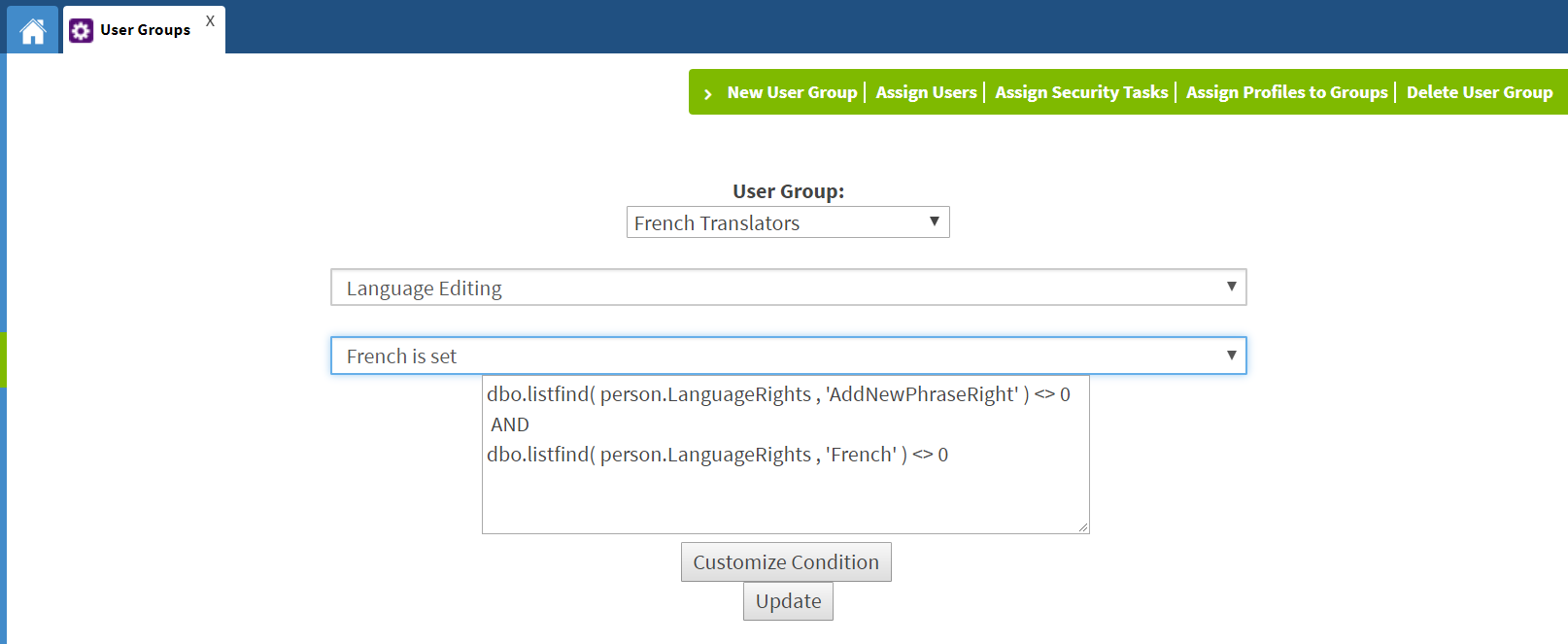
- Click Update.
The result of this procedure is that any user who has both the Add New Phrase and French rights will be added to this group automatically.
You may need to click Assign Users to see the refreshed list of members.
Comments
0 comments
Please sign in to leave a comment.