
Overview
Zift PRM Training provides all the tools needed to create and deliver a comprehensive training program to internal staff, partners, and the public. Zift Training software can support either virtual or classroom training and allows both directed and on-demand training.
Modules are the basic building block of Zift PRM Training Manager. All Training Activities are composed of Modules.
Before You Begin
- Log into PRM Admin with elementTask Level 2 rights or greater.
- You must set up a Course before you can create a Module. If no Courses exist, you will see this message: No courses have yet been set up. Please set up your courses before creating modules. All training material is associated with Modules, which can be either online or classroom-based. Online Modules will always have Courseware associated with them, and if required, a Quiz that will test partners on their knowledge attained from the Courseware.
How to Create Modules
The Module ID and Courses that contain the module items will be auto-populated by Zift PRM. Module ID is generated when the Module is first saved and cannot be modified. The Courses that contain this module will be updated when this Module is included or removed from Courses.
- Navigate to Training > Modules.
- In the Modules screen, do one of the following:
- To edit an existing Module click on it in the table
- To create a new Module click on Add.
Figure: Modules screen from which you may add or edit Modules.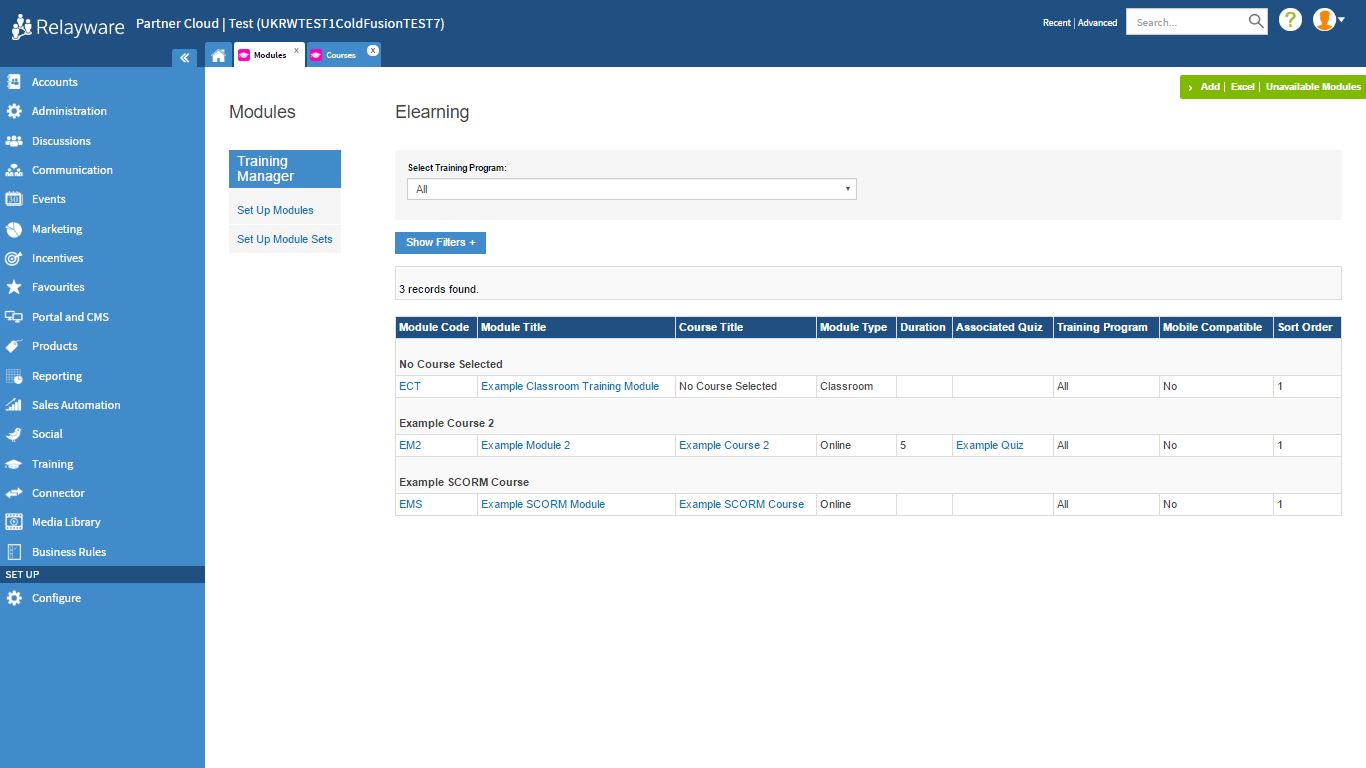
- In the Module Editor, provide the following information:
Label Type Description Module Code Text A short code you set to help identify this Module. Module Title Text This is the only mandatory field. It is the name displayed to users in the Portal and can be translated if needed. Language Drop-down List This is the language of the Module. Module Description Text This is a longer description of the Module. It will also be displayed to Portal users and can be translated. Though optional, this information can save a lot of time and effort when managing the Module later. Is SCORM? Boolean Select YES if your Courseware is SCORM-compliant. Select Courseware Drop-down List Select the Courseware file to associate with this Module. Courseware Launch Filename Text Specify which launch file is to be used by the associated Courseware. Pass decided by Drop-down List Set whether Zift PRM will determine that the Module has been passed or this will be determined by the Courseware that will update the Zift PRM database. Select Quiz Drop-down List If passing this Module will be assessed by Zift PRM, associate a Quiz. Country Drop-down List The countries from which users are permitted access to this Module. Training Program Drop-down List Assign the Module to one or all of the Training Programs. Published Date Date Selector Set the date when this Module will become Available on the Portal. Until then, it will only be visible through the Administrator site. Click on the calendar icon to select a future date if necessary. The default date is the the creation date. Expiry Date Date Selector Set the date when this Module will expire and cease to be Available on the Portal. After this, it will still be visible through the Administrator site. Credits Number This is the number of credits that will be awarded on successful completion of the Module. These credits can be transferred to the Incentive Manager as Incentive Points. Module Type Drop-down List Determines the delivery mode of this Module. The options are online, classroom, or webinar. Module Image File Upload Use this setting to associate a thumbnail image with this Module. Availability Boolean This setting works with the Published and Expiry dates to control access. In all cases, if Availability is set to NO, the Module is not available. However, if the Availability is set to YES, the Module will only be available between the Published and Expiry dates. Mobile Boolean Specifies if this Module is configured to be displayed in the Zift PRM Mobile app. Social Updates Boolean Specifies if this Module can be included in Social Media updates. Sort Order Drop-down List Sets the precedence of this Module in the ordering of a list of Modules. Who should see this Module Multi-select list Specifies which users this Module should be accessible to. Additional visibility restrictions can be added if desired. - Click Save. You have now created a Module. This will be available to Portal users according to the Publish, Expiry, and Availability settings. It will also be accessible through the Administrator site in the Training > Modules area.
Related Topics
- Video: Introduction to Training Manager
- Video: Training in the Portal Overview
- Video: Reports and RelayTags
- Video: Training Programs and Paths
- Video: Training Modules and Module Sets
- Video: How to Upload Training Courseware
- Video: Create Quizzes for Training Courses
- About Training
- Administration: Reports
- Training RelayTags
- Training: Create Quizzes
- Manage Country Groups and Members
Comments
0 comments
Please sign in to leave a comment.